

Organization Settings
Use the links below to jump to the setup area you need.
- Identity & Branding
- Payment & Financial Configuration
- Understanding the Billing Page
- Users & Permissions
- Organization-Wide Advanced Settings
- Messaging Defaults
- Connected Apps
The Advanced Options tab contains Organization-wide system controls that affect security, attendance behavior, client restrictions, invoicing behavior, notifications, and default data structures.
Open Advanced Options
From the top navigation bar:
-
Click the cogwheel beside your Organization name.
-
Select Modify Organization Settings.
-
Open Advanced Options.

These settings apply globally across Activity Messenger and should be modified with care, as changes can impact existing workflows, internal users, and client-facing experiences.
⚠️ Important:
Advanced Options are Organization-wide settings. Changes may affect existing forms, Classes/Events, attendance lists, invoices, client account links, staff workflows, and client-facing experiences.
Review changes carefully before saving. Always click Update after making changes.
Covered in this guide
Click a section title to jump to that section.
- Security & Authentication
- Compliance & Regional Features
- Class Behavior
- Client & Risk Management
- Client Account & Navigation Controls
- Invoicing Configuration
- Notifications & Staff Awareness
- Attendance Views & Exports
- Tracking Status Options
- Default Person Fields (Global Form Defaults)
1. Security & Authentication
Two-factor authentication (2FA)
Adds an additional layer of security for all users when logging in.
When enabled:
- Users must re-authenticate using a one-time verification code
- Codes can be sent by email or SMS
- Helps protect your account from unauthorized access
Only send two-factor authentication code by SMS
- Restricts 2FA delivery to SMS only
- Useful for organizations that require mobile-based identity verification
Restricting two-factor authentication to SMS reduces security risk in scenarios where an email account has been compromised.
2. Compliance & Regional Features
Generate RL-24 slips for childcare expenses (Quebec)
- Enables generation of RL-24 tax slips for eligible childcare expenses
- Designed for organizations operating in Quebec
- Supports compliance with provincial tax reporting requirements
📎 For a full walkthrough on setting up and managing RL-24 activities, refer to the RL-24 Workflow article.
3. Class Behavior
Display maximum age minus one year
- Adjusts how age limits are displayed on classes
Example:
- Maximum age configured: 5 years
- Displayed age limit: 4 years
This option is commonly used in childcare and age-based programs.
Allow showing all classes on the calendar for employees
- Allows staff to view all available classes across the Organization
- When disabled, staff only see classes they are assigned to (this is the default setting)
- Improves internal visibility for scheduling and coordination
4. Client & Risk Management
Bad payers list
- Select a predefined list of clients flagged as bad payers
When enabled:
- Clients on this list are forced to pay in full by credit card before they can make another purchase
- Useful for managing payment risk and recurring non-payment issues
Banned clients list
- Select a predefined list of banned clients
When enabled:
- Clients on this list cannot fill out forms
- Used to enforce Organization-level access restrictions
📎 For a full walkthrough on creating and managing these lists, refer to the Client Restrictions & Lists article.
5. Client Account & Navigation Controls
Client account URL override
- Replaces the default Activity Messenger client portal URL
When set:
- All “My Account” links point to the specified URL instead of the default client portal
Useful for organizations using:
- Custom client portals
- Embedded or white-labeled experiences
Prevent direct download of membership cards to Apple/Google Wallet on invoices
- Prevents participants from downloading membership cards directly from invoices
- Membership cards can still be downloaded from the My Account page
- Useful when you want to centralize access to digital cards through the client portal
6. Invoicing Configuration
Organization name on the invoice
- Allows you to display a different Organization name on invoices
- Overrides the default Organization name for invoices only
Common use cases:
- Legal entity names
- Parent organizations
- Branding variations
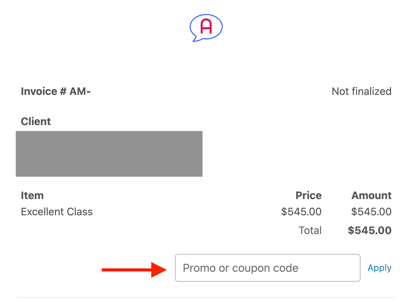
Display promo code field by default
- Makes the promo code or coupon field always visible on invoice pages
- Removes the need for clients to expand or reveal the field manually
- Useful for organizations that frequently offer promo codes or discounts
7. Notifications & Staff Awareness
Notify users when a staff schedule changes
- Select one or more internal users to receive notifications
- Notifications are sent when:
- Staff schedules are modified
- Helps administrators and coordinators stay informed of operational changes
8. Attendance Views & Exports
Default visible attendance columns
- Controls which columns are shown by default in attendance lists
- Can be expanded using + Show
- Helps standardize what staff see during attendance tracking
Default attendance export columns
- Controls which columns are included by default when exporting attendance data
- Ensures consistent reporting formats across exports
9. Tracking Status Options
Default tracking status options
- Defines the attendance tracking states available across the platform
Default states include:
- Present
- Absent
You can manage or edit tracking states using the edit icon.
These states are used consistently across attendance tracking and reporting.
10. Default Person Fields (Global Form Defaults)
Default person fields
Controls which personal data fields are enabled by default when creating forms and registrations.
This helps:
- Save time when adding Person blocks in the Form Designer
- Standardize the information you collect across all forms
Add custom field
- Allows you to define additional custom person fields
- Custom fields become available across all forms and registrations once created
Related guides
- Getting Started in Activity Messenger
- Users & Permissions
- Attendance & Tracking
- Payment & Financial Configuration
- Forms 101: Getting Started with Activity Messenger Forms
- Class/Event creation guide