

Organization Settings
Use the links below to jump to the setup area you need.
- Identity & Branding
- Payment & Financial Configuration
- Understanding the Billing Page
- Users & Permissions
- Organization-Wide Advanced Settings
- Messaging Defaults
- Connected Apps
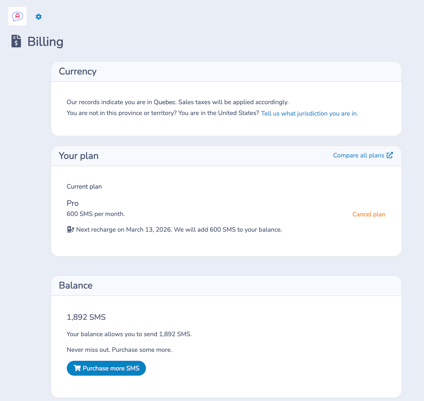
The Billing page provides a centralized view of your organization’s subscription, SMS usage, invoices, and billing configuration in Activity Messenger. It allows administrators to manage plans, monitor balances, review invoices, and understand how messaging usage is billed.
⚠️ Important: The Billing Page shows invoices related to your Activity Messenger subscription and account charges. It does not show invoices created for your clients through forms, registrations, bookings, or POS workflows.
Open the Billing Page
From the top navigation bar:
1. Click the cogwheel beside your Organization name.
2. Select Billing.

Covered in this Guide:
Click a section title to jump to that section.
1. Currency & Jurisdiction
The Currency section displays the jurisdiction and currency used for billing purposes.
-
You may change your jurisdiction if needed.
-
The selected jurisdiction determines which currency is used for billing
2. Subscription Plan
The Your plan section summarizes your current Activity Messenger subscription.
Information displayed
-
Current plan name (for example, Premium)
For a detailed breakdown of plan features, limits, and pricing, refer to the pricing page on our website. -
Included monthly SMS allowance (varies by plan)
-
Next recharge date
-
Option to change or cancel your plan
Available actions
-
Update credit card– change the credit card with which you pay your subscription
Notes
-
SMS allowances reset automatically at each billing cycle
-
Subscription billing is managed through Stripe
-
Plan changes may affect available features and usage limits
3. SMS Balance
The SMS Balance section shows how many SMS messages your organization currently has available.
-
Your balance indicates how many messages can still be sent
-
If needed, you can purchase additional SMS by clicking Purchase more SMS
4. Invoices
The Invoices section lists all billing invoices associated with your organization.
-
New invoices appear automatically as charges are generated
-
You can click an invoice link to be redirected directly to the corresponding invoice in Stripe
This provides full visibility into your billing history and payment records.
5. Organization deletion
At the bottom of the page, administrators will find:
Permanently delete this organization
⚠️ Warning:
This action is irreversible and will permanently remove:
-
Organization data
-
Billing history
-
Configurations and assets
Only perform this action if you are certain the organization should be fully removed