

Quick Messages are reusable, text-first message assets designed for fast, operational communication.
Think of them as “Templates light.”
They are optimized for speed, clarity, and mobile delivery — making them ideal for reminders, announcements, cancellations, and short follow-ups that need to be sent quickly.
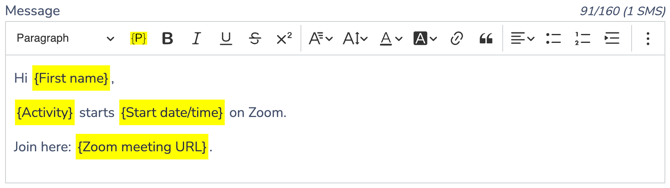
Unlike full HTML Templates, Quick Messages:
-
Focus on text over layout
-
Avoid complex visual structure
-
Work naturally in SMS
-
Still function well in email
-
Support placeholders for personalization
Quick Messages help you:
-
Reduce writing time for recurring communications
-
Maintain a consistent tone across staff
-
Reuse proven operational messages
-
Personalize reminders and updates using placeholders
🧭 When to Use Quick Messages vs Templates
Use a Quick Message when:
-
Speed matters
-
Visual layout is not important
-
The message is short
-
The communication is operational
Use a Template when:
-
You need branding and layout
-
You want images, buttons, or multiple sections
-
The message is longer
-
It’s marketing or newsletter-style communication
➡️ This article is part of Communications 104: Message Assets.
Covered in this guide
Use this section to quickly find the Quick Message concept or action you need.
1. What Quick Messages Are (and What They’re For)
Quick Messages are reusable text-based message blueprints.
They are built once and reused whenever you need to send a short operational message.
Typical use cases:
-
Class cancellations
-
Facility closures
-
Last-minute schedule changes
-
Payment reminders
-
Registration confirmations
-
Follow-up reminders
They are especially effective when combined with placeholders, allowing you to personalize messages automatically without rewriting them each time.
🧭 Quick Messages as Operational Assets
A Quick Message is a reusable text structure — not a sent message.
It defines what the message says and can include placeholders for personalization. The same Quick Message can be reused across different audiences and works in both SMS and email.
Like Templates, Quick Messages do not determine:
-
Who receives the message
-
When it is sent
-
Whether it is marketing or non-marketing
Those decisions are made at message creation time.
🧩 Pattern: Text Structure → Audience → Delivery
Quick Messages follow the same composable model as other message assets:
Text Structure
Write and save a reusable message format.
Audience
Select the recipients when creating a new message.
Delivery
Send immediately or schedule for later.
The structure stays reusable.
The audience and timing change each time.
This keeps your operational communication fast and consistent.
2. Creating a New Quick Message
To create a Quick Message:
-
Go to Communications > Quick Messages
-
Click (+)
-
Enter a clear, internal Name
-
Write your message content
-

Optionally, use the AI assistant to improve, rewrite, or translate your text
-
-
Insert placeholders if needed
-
Click Create
Your Quick Message is now saved and available for reuse.
Writing Your Quick Message
Quick Messages are designed to be:
-
Short
-
Clear
-
Direct
-
Easy to read on mobile
Best practices:
-
Keep sentences short
-
Use simple formatting
-
Avoid large paragraphs
-
Use placeholders for names, dates, or activity details
Using Default Quick Messages
Activity Messenger includes several built-in Quick Messages to help you get started and support common operational workflows.
These are marked with a “Default” tag.
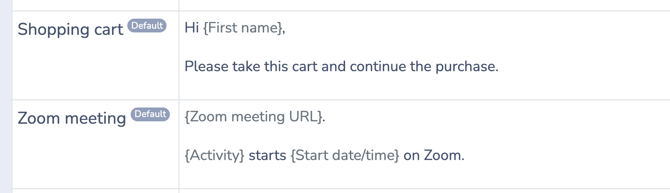
You can:
-
Use them as-is
-
Duplicate and modify them for your needs
-
Use them as inspiration to create your own operational messages
Default messages are designed to help you automate common communication workflows quickly, without starting from scratch every time.
Example: Class Start Reminder Quick Message
This example shows a Quick Message used to notify a participant about the start time and location of a specific activity.
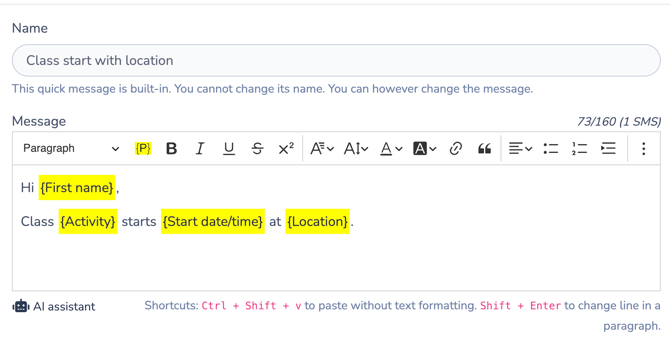
The message uses placeholders to automatically insert:
-
{First name} -
{Activity} -
{Start date/time} -
{Location}
When sent, each recipient receives a personalized version with their own class details.
This illustrates how Quick Messages combine short, operational wording with dynamic data for fast, reusable communication.
➡️ For full details on placeholders, see Placeholders Documentation.
📱 SMS character limit
Quick Messages are often used for SMS, so the creation screen includes a live character counter.
When you send an SMS, Activity Messenger adds required text around your configured message.
The final SMS follows this structure:
**[Organization Alias]: [Configured message] Reply STOP to opt-out.**
Activity Messenger reserves at least 25 characters for the required opt-out text. In French, this requires at least 38 characters. Your Organization Alias is also added at the beginning of the SMS, so the final length depends on your alias, message text, language, and characters used.
Because SMS messages are billed by segment, longer messages, accents, emojis, or special characters may increase the number of SMS segments used.
Use the character counter and SMS preview before sending.
➡️ For full details on SMS rules and costs, see Communications 101.
3. Editing and Managing Quick Messages
The Quick Messages management screen allows you to organize and maintain all saved Quick Messages in your account.
To access it:
Go to Communications > Quick Messages
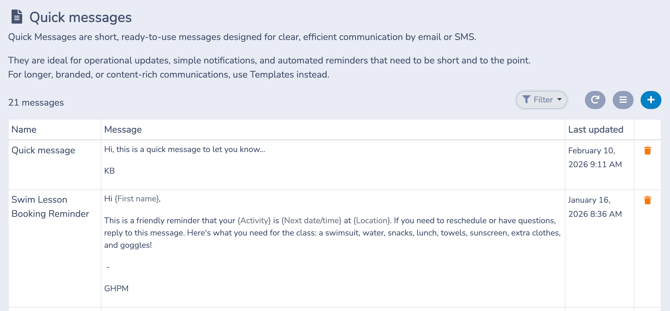
From this screen, you can:
-
View all saved Quick Messages
-
Reorder messages
-
Edit existing messages
-
Archive messages you no longer use
-
Filter > Archived to view archived messages
Reordering Quick Messages
Use the  Reorder option to drag and drop Quick Messages into your preferred order.
This allows you to:
-
Keep frequently used messages at the top
-
Group related operational messages together
-
Organize by season, program, or workflow
Reordering affects display only. It does not change message content.
Editing a Quick Message
Click on a Quick Message row to open and modify its content.
After making your changes, click Save.
Changes apply to future uses of the Quick Message. Previously sent messages are not affected.
Archiving Quick Messages
Click the  orange Trash icon to archive a Quick Message.
Archiving removes the message from active use while keeping it in your account for reference.
Archived messages:
-
No longer appear in active selection lists
-
Can be accessed using Filter > Archived
-
Do not affect messages that were already sent
🧩 Safe Archiving
Archiving a Quick Message never changes or removes previously sent communications.
4. Sending your Quick Message
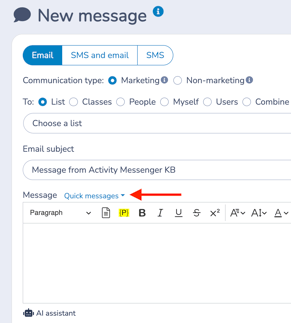
Quick Messages are delivered through the New Message interface.
To send:
-
Go to Communications > + New Message
-
Choose your channel (Email, SMS, or both)
-
Define communication type (marketing or non-marketing)
-
Set sender and reply settings
-
Select your audience
-
Click Quick messages
-
Choose the message you want
-
Preview and test
-
Send immediately or schedule
Once selected, the Quick Message content loads into the message editor, where you can:
-
Make small adjustments if needed (will not affect your reusable Quick Message)
-
Confirm placeholders resolve correctly
-
Review SMS character count (if applicable)
💡 Tip:
The Quick Messages dropdown displays messages in the same order set in the Quick Messages management screen.
Reordering them there helps you keep frequently used messages at the top, making them faster to find when sending.
➡️ For a complete walkthrough of the New Message interface, see Communications 103: Creating and Sending Messages.
How Quick Messages Behave by Channel
SMS
-
Message appears directly in the text body
-
Best for short operational updates
-
Message appears as a simple text email
-
Can include a subject line
-
Works well for concise notifications
Because Quick Messages are text-first, they are inherently mobile-friendly.
5. Testing and Previewing
Before sending a Quick Message: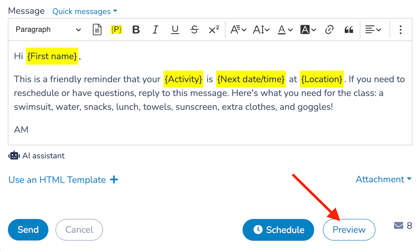
-
Load it into the New Message interface
-
Select your audience
-
Use Preview
-
Test placeholders
-
Send a test message to yourself
Verify: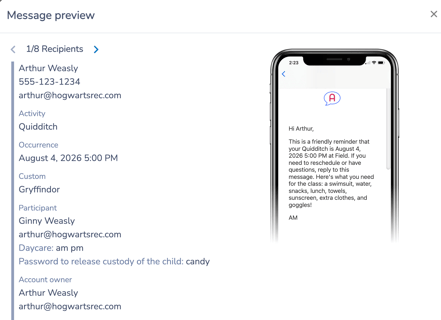
-
Placeholder data resolves correctly
-
Links function properly
-
SMS formatting is clear
-
The message reads well on mobile
Testing ensures your message remains clear and professional.
Related guides
-
Communications 103: Creating and Sending Messages
-
Communications 104: Message Assets
-
Templates: Creating and Using Reusable Email Layouts
-
Messaging Defaults
-
Sending Emails from Your Own Domain
-
Communications 101: Foundational Concepts and Unsubscribe Management