

These automations are date-based and run using each member’s individual membership dates.
-
Membership Start sends a message before or after a membership begins.
-
Membership Renewal sends a message before or after a membership expires.
Use them to automate onboarding, renewal reminders, and retention workflows tied to a membership lifecycle.
📌 At a Glance
Definition
Membership Start and Membership Renewal are date-based automations that send messages relative to each member’s membership start or expiration date.
Use them when
• welcoming new members
• sending renewal reminders
• notifying members of upcoming expiration
• recovering expired memberships
Inputs
• selected membership list
• membership start or expiration date
• timing configuration
• optional advanced filters
Outputs
• scheduled email or SMS messages
• personalized reminders based on each member’s dates
• automated onboarding and renewal communication
Key rules
• timing is calculated per member
• Membership Start uses the membership start date
• Membership Renewal uses the membership expiration date
• new members added to the list are automatically included
Related automations
Activity Start • Class Reminder • Form Response
Covered in this guide
Use this section to quickly find the Membership Automation setting or workflow you need.
.png?width=341&height=458&name=New%20Automated%20Task%20-%20Membership%20(Renewal%20and%20Start).png)
1. When to Use Membership Start and Membership Renewal
Membership Start
-
Send a welcome message when membership begins
-
Provide onboarding instructions
-
Share member benefits and policies
-
Deliver access details or next steps
Membership Renewal
-
Notify members before expiration
-
Follow up after expiration
-
Encourage proactive renewal
-
Reduce lapses in membership
Note
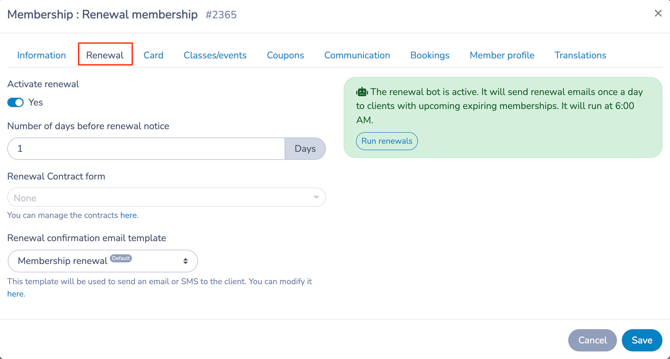
You can also create the renewal automation directly from the Membership Creation panel, under the Renewal tab.
This is useful when the renewal reminder applies to a specific membership type rather than multiple membership lists.
🧭 2. How These Automations Work
Both automations are triggered by each member’s individual membership dates.
| Automation Type | Trigger Reference |
|---|---|
| Membership Start | Membership start date |
| Membership Renewal | Membership expiration date |
For each qualifying member, the system:
-
Detects the relevant membership date
-
Calculates timing based on your configuration
-
Sends the message only to members in the selected membership list
You are defining a lifecycle rule, not scheduling a one-time message.
Timing is calculated per member.
⚙️ Membership Lifecycle Automation Model
Membership automations follow this sequence:
Trigger
The automation detects the relevant membership lifecycle date:
-
Membership Start → membership start date
-
Membership Renewal → membership expiration date
Timing
The system calculates the send date relative to that lifecycle event.
Filters
Optional advanced options may further restrict recipients.
Scheduling
If all conditions are met, the system schedules the message automatically.
3. Step-by-Step Guide
The setup process is identical for both types.
Only the trigger selection differs.
Step 1: Create the Automation
-
Go to Communications > Automation > + Create
-
Enter a clear Name
-
(Optional) Add an internal description
-
Select either:
-
Membership Start
-
or Membership Renewal
-
-
Toggle Send automatically: Yes
Step 2: Set Timing
Define how many days before or after the relevant membership date the message should send.
- For Membership Start, timing is calculated from the membership start date.
- For Membership Renewal, timing is calculated from the membership expiration date.
Use 0 and define a send time to deliver the message on the same day as the start or expiration date.
Examples:
Membership Start
-
Send on the start date
-
Send 1 day before start
Membership Renewal
-
Send 7 days before expiration
-
Send on expiration date
-
Send 7 days after expiration
Timing is calculated from each member’s individual start or expiration date.
Step 3: Define Your Recipients
Choose the Membership List or Lists that should be monitored by the Automation.
This Automation applies only to members in the selected Membership List.
If new members are added to the selected List later, they are automatically evaluated by the Automation.
Step 4: Configure Advanced Options (Optional)
Advanced Options further restrict who receives the message.
Ensure member does not have another active membership
Available for Membership Renewal only.
Enable this option when you want to avoid sending renewal reminders to members who already have another active membership.
This is especially useful for post-expiration follow-ups. For example, if a member’s old membership expired but they already purchased a new active membership, the reminder will not be sent.
Step 5: Configure Your Message
-
Click Configure message
-
Choose one:
-
Write a new message
-
Select a Template
-
Select a Quick Message
-
-
Add attachments if needed (e.g., renewal form)
Default Message Template
When you create a Membership Renewal automation, Activity Messenger automatically
generates a default email template.
The template includes the following placeholders: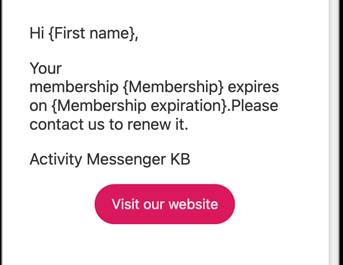
-
{First name} -
{Membership} -
{Membership expiration}
You can:
-
Modify the default template
-
Replace it with another existing Template
-
Create a new message from scratch
We recommend customizing the message to include:
-
A direct renewal link
-
Clear payment instructions
-
Contact details
-
Renewal deadline (if applicable)
Using placeholders ensures each member receives accurate, personalized information automatically.
Membership Start
The default template for Membership Start is very simple.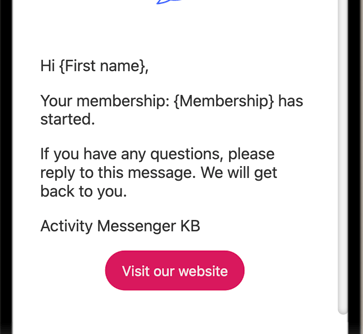
We recommend writing your
own onboarding message to:
-
Welcome the member
-
Explain benefits and access
-
Provide next steps
-
Set expectations clearly
A well-written start message improves the member experience from day one.
Step 6: Save and review the Simulation
Click Save to activate the automation.
Once saved and set to Send automatically: Yes, the automation will begin sending messages according to your configured timing and filters.
Automation Simulation
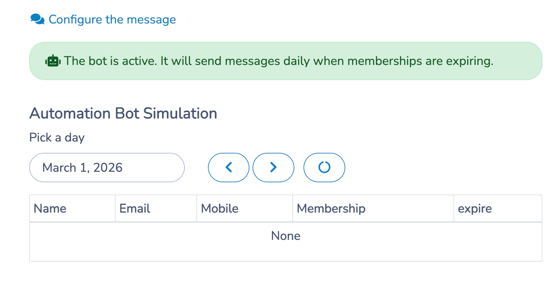
At the bottom of the automation configuration page, you will see the Simulation panel.
The Simulation automatically displays scheduled messages based on your current settings.
It allows you to verify:
-
Which members qualify
-
Which start or expiration dates are detected
-
When messages are scheduled to send
The Simulation does not send messages.
It reflects what the automation has already scheduled.
💡 Best practice:
After saving your automation, review the Simulation panel and check upcoming dates to confirm everything is working as expected.
4. 🧩 Key Configuration Notes
Membership Start
-
Timing is calculated from each member’s individual start date
-
Ideal for onboarding workflows
Membership Renewal
-
Timing is calculated from each member’s individual expiration date
-
Automatically includes new members added to the selected list
-
Commonly used with the “Ensure member doesn’t have another active membership” filter
Both support placeholders such as:
-
-
Member name
-
Membership name
-
Start date
-
Expiration date
-
5. Common workflows
Below are typical operational uses for the Membership Renewal automation.
1️⃣ Membership Onboarding
Goal: Welcome new members.
Setup:
-
Membership Start
-
Send on start date
-
Include benefits and contact info
Outcome:
Members understand how to use their membership.
2️⃣ Pre-Expiration Reminder
Goal: Encourage renewal before lapse.
Setup:
-
Membership Renewal
-
Send 7 days before expiration
-
Include renewal link and expiration date
Outcome:
Members renew before access expires.
3️⃣ Expiration Day Notice
Goal: Notify members their membership has expired.
Setup:
-
Send on expiration date
-
Include renewal instructions
Outcome:
Members are informed of their status.
4️⃣ Post-Expiration Recovery
Goal: Recover recently expired memberships.
Setup:
-
Send 7 days after expiration
-
Enable “Ensure member doesn’t have another active membership”
Outcome:
Only members who have not renewed receive reminders.
6. 🧭 Workflow design tip
Use Membership Start and Membership Renewal when communication is tied to membership lifecycle dates.
If communication is tied to:
-
A class schedule → Use Class Reminder
-
A program’s first session → Use Activity Start
-
A form submission → Use Form Response
Think in terms of what drives timing:
Membership start date → Membership Start
Membership expiration date → Membership Renewal
Related guides
-
Communications 105: Automating Email and SMS Messages
-
Class Reminder Automation
-
Activity Start and Activity End Automation
-
Form Response Automation
-
Communications 103: Creating and Sending Messages
-
Communications 102: Building and Managing Lists
-
Templates: Creating and Using Reusable Email Layouts
-
Quick Messages: Creating and Using Text-First Operational Messages
-
Personal Information and Electronic Message Laws in Canada and the USA