

The Media Library is where Activity Messenger stores all the images, videos, and documents used across your communications.
You upload media once and reuse it wherever needed—inside templates, quick messages, forms, certificates, and Microsite web pages. This keeps your communications consistent and avoids duplicate uploads.
This guide explains:
-
What the Media Library is for
-
How media is organized and reused
-
How images, videos, and documents behave across email and SMS
Covered in this guide
Use this section to quickly find the media asset or setting you need.
1. Your Images
3. Your Videos
4. Pexels (royalty-free images)
➡️ This guide is part of Communications 104: Message Assets, which explains the core building blocks used to create and send messages in Activity Messenger.
1. Understanding the Media Library
The Media Library is where you manage all of the images, videos, and documents used in Activity Messenger.
From here, you can upload, organize, update, and reuse media across your communications—without re-uploading files or breaking previously sent messages.
🧭 Orientation: Media as Reusable Assets
Media assets are attachments, not messages. Messages and templates reference media from your library when needed.
Once uploaded—whether directly through the Media Library or indirectly through a form, template, message, or certificate—media is automatically added to your Media Library. From there, it can be reused safely across many messages, templates, and forms without duplication.
You never “move” media from one message to another. You simply attach the same asset wherever it’s needed.
🧩 Pattern: Upload once, attach everywhere
Media assets are reusable attachments. After an asset is uploaded to the Media Library, you can attach it to multiple messages, templates, forms, certificates, and web pages without uploading a new copy each time.
You never move media from one message to another. You attach the same reusable asset wherever it is needed.
.png?width=670&height=327&name=Media%20Attachment%20(New%20Message).png)
Media Exploration and Organization
Inside the Media section, you can:
-
Browse all media assets
-
Upload new content
-
Create visuals using Canva
-
Add tags to images for easier filtering
Once uploaded, media becomes immediately available across:
-
Templates
-
Quick messages
-
Forms
-
Certificates
-
Web pages and newsletters
Media and Message Channels
Media adapts automatically based on delivery channel:
-
Email
Images and video previews are displayed inline -
SMS
Media is delivered using shortened links (am.lol)
This ensures messages stay readable and lightweight, especially on mobile devices.
2. Accessing the Media Library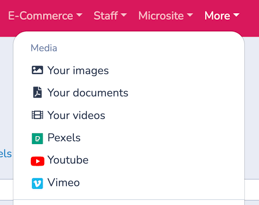
You can access the Media Library at any time:
-
In the main navigation menu, click More
-
Under Media, choose the media type you want to manage
3. Media Library Interface Overview
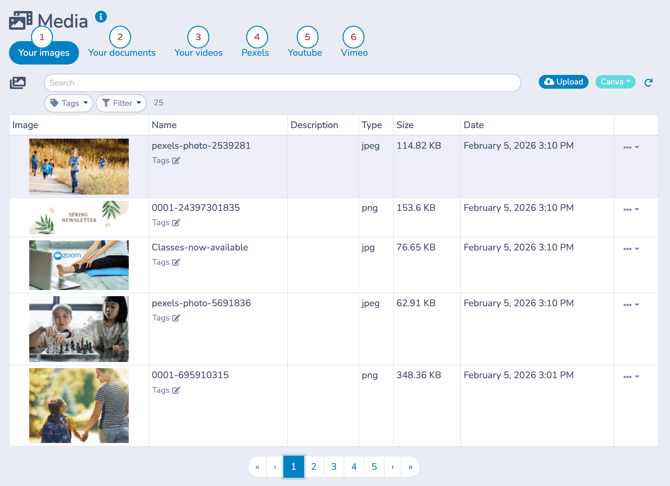
The Media Library is organized into tabs by asset type. Each asset type is numbered in the interface shown above.
(Click an asset type to jump to its description.)
| 1. Your images | 4. Pexels |
| 2. Your documents (PDFs) | 5. YouTube |
| 3. Your videos | 6. Vimeo |
Each tab serves a specific purpose but follows the same reuse principles.
General Usage Rules
Across all media tabs, the following behaviors apply:
-
Search
Search for specific assets within the current category using the asset name. -
Tags
Each asset type has its own tagging system. Tags help organize and filter large media libraries.
Tags do not carry across categories—for example, image tags do not apply to videos. -
 Upload icon
Use the upload icon to add a new asset to the category you are currently viewing.
1. Your Images
Images are used throughout Activity Messenger in templates, newsletters, forms, and Microsite pages.
They are stored centrally in the Media Library and can be reused anywhere images are supported, without needing to upload the same file multiple times.
Clicking an image row opens a detail view where you can:
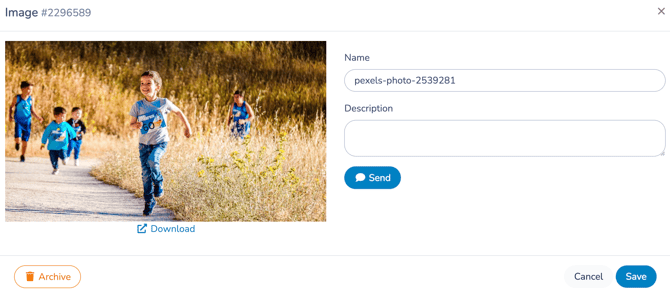
-
Edit the image title and description
-
Archive the image
-
Send the image directly
Sending an image directly opens the New Message interface with the image pre-attached, allowing you to quickly send it by email or SMS.
What You Can Do with Images
With images in the Media Library, you can:
-
Upload your own images
-
Edit the image name and description
-
Add tags to organize and filter images
-
Send images directly via email or SMS
-
Reuse the same image across multiple templates and messages
Creating an Image with Canva
You can create images directly from the Media Library using Canva.
-
Click the Canva button
-
Design or edit your image in Canva
-
Save it to automatically upload it into your Media Library
Once saved, the image behaves like any other uploaded image and can be reused across your communications.
Image Actions Menu
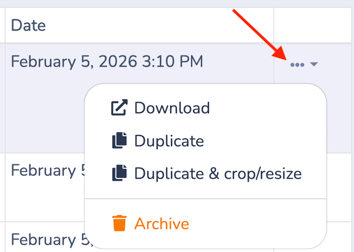 Each image in the Media Library has an Actions menu (⋮), shown in the screenshot above. This menu lets you manage and reuse images without re-uploading or breaking existing messages.
Available actions include:
Download
Download the original image file to your computer.
Duplicate
Create an exact copy of the image. This is useful when you want to reuse an image but apply different tags, descriptions, or edits.
Duplicate & crop/resize
Create a copy of the image and immediately adjust its dimensions.
This is the recommended option when adapting an image for a different layout (for example, creating a square version for a two-column block while keeping the original intact).
Archive
Archive the image so it’s no longer available for new messages or templates.
-
Archived images are removed from active selection lists
-
Images already used in sent emails or SMS messages remain visible to recipients
-
Archived images can be accessed using the Filter option
🧩 Safe Archiving
Archiving an image never breaks previously sent emails or SMS messages. Messages always reference the version that existed at send time.
2. Your Documents (PDFs)
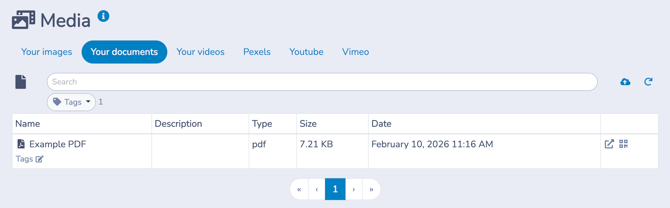
The Your documents tab stores PDF files such as schedules, policies, invoices, waivers, and guides.
Documents are managed centrally in the Media Library and can be reused across messages, templates, and forms.
Document Behavior
With PDF documents, you can:
-
Upload PDF files directly to the Media Library
-
Generate a unique, shareable link for each document
-
Use documents in multiple ways:
-
Attach them to emails
-
Link to them inside templates
-
Send them by SMS using a download link
-
Documents are never embedded visually in emails. They are always delivered as attachments or links, ensuring reliable rendering across all devices and email clients.
Document Details and Actions
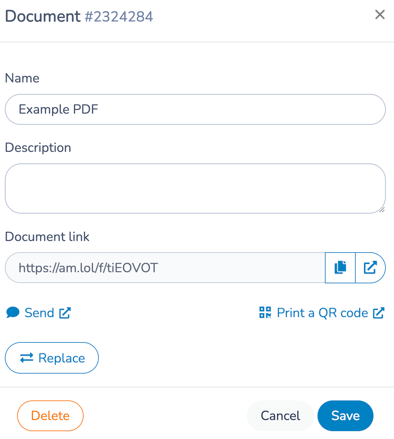 Clicking a document row opens a detail view where you can:
-
Edit the document name and description
-
Copy the shareable link or open it in a new tab
-
Download the document
-
Send the document directly
-
This opens the New Message interface with the document pre-attached
-
-
Replace the document file while keeping the same link
Useful for updating a PDF without changing links already in use. -
Generate and print a QR code pointing to the document
-
Delete the document
⚠️ Important: Deletion vs Archiving
Unlike images, documents are deleted, not archived.
-
Deleting a document permanently removes it from your account
-
The document and its link will no longer be accessible
-
Previously shared links will stop working
Use deletion only when you are certain the document is no longer needed.
Quick Actions from the List View
From the document management list, you can use quick shortcuts to:
| Download the document (opens it in a separate tab) |
 |
| Print a QR code that links directly to the document |  |
These shortcuts allow fast access without opening the full document detail view.
3. Your Videos
Videos are ideal for training, announcements, and promotional content where seeing and hearing the message adds clarity or impact.
Videos are managed centrally in the Media Library and can be reused across templates, messages, forms, and web pages.
🧩 Video hosting best practice
Videos uploaded directly to Activity Messenger are stored in Activity Messenger’s cloud.
For longer or higher-quality videos, we strongly recommend using YouTube or Vimeo instead.
These platforms are purpose-built for video streaming and automatically:
-
Resize videos for different screen sizes
-
Adjust formats for various devices and connection speeds
-
Optimize playback performance
Activity Messenger video uploads are best suited for short videos (ideally under 30 seconds), such as quick announcements or brief instructional clips.
For anything longer, hosting the video on YouTube or Vimeo and attaching it to your message provides a smoother viewing experience for recipients.
Video Capabilities
With videos, you can:
-
Upload your own video files
-
Trim the beginning of a video to remove dead time or intros
-
Add a watermark using your Organization logo
-
Automatically generate a unique URL for each video
-
Send videos via email or SMS
How videos are delivered:
-
Email: Displays a clickable preview image that opens the video
-
SMS: Includes a shortened link that opens the video in a browser
This approach keeps messages lightweight while still providing access to rich media.
Video Upload Screen
The video upload screen allows you to add a new video to your Media Library and configure how it will be presented and reused across your communications.
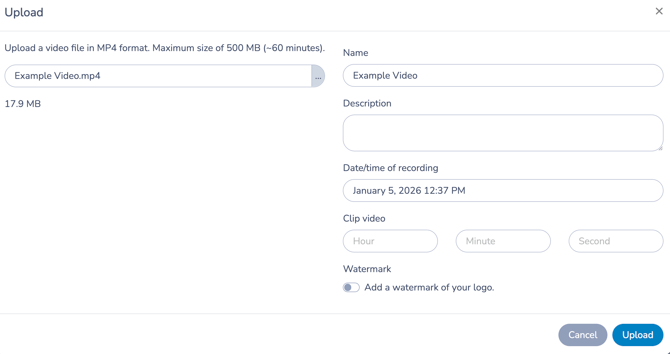 When uploading a video, you can define the following:
Video file
-
Upload videos in MP4 format
-
Maximum file size: 500 MB
-
Recommended maximum length: 30 seconds
For longer videos, use YouTube or Vimeo and attach the hosted video instead for better streaming performance across devices.
Name
-
The internal name used to identify the video in your Media Library
-
This name is visible only to your team, not to recipients
Description
-
Optional internal notes to describe the video’s purpose or context
-
Useful for teams managing many videos
Date and time of recording
-
Helps track when the video was created
-
Useful for training content, updates, or time-sensitive recordings
Clip video
-
Define a starting point (hour, minute, second)
-
This trims the beginning of the video to remove dead time or intros
-
The original file remains intact; the clipped version becomes the active video
⏱ Processing time
Editing a video can take several minutes. Clipping typically takes 10 to 30 minutes, depending on the video length. Once processing is complete, the updated video appears at the top of the list and is ready to use.
Watermark
-
Optionally add your organization’s logo as a watermark
-
Helps reinforce branding and discourage unauthorized reuse
Once uploaded, the video is processed and added to your Media Library, where it can be:
-
Reused in templates and messages
-
Sent by email or SMS
-
Linked or shared via its unique URL
🧩 Reusable Media Asset
Each uploaded video becomes a reusable asset. You configure it once, then reference it wherever you need it—without re-uploading or duplicating files.
Video Details and Actions
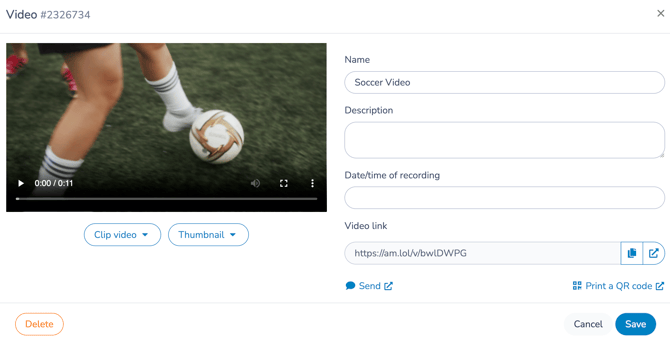
Clicking a video row opens a detail view where you can:
-
Edit the video name and description
-
Send the video directly
This opens the New Message interface with the video pre-attached -
Copy the video’s shareable link
-
View the video in a new tab
-
Print a QR code linking to the video
-
Delete the video
External Video Integrations
Activity Messenger integrates with external video platforms including YouTube and Vimeo so you don’t need to upload everything manually.
🧩 Link-Based Video Delivery
Videos are always shared via links or previews rather than embedded playback. This ensures consistent delivery across email clients and keeps SMS messages fast and lightweight.
Quick Actions from the List View
From the video management list, you can use shortcuts to:
| Download the video (opens it in a separate tab) |
|
| Print a QR code that links directly to the video | |
These shortcuts allow fast access without opening the full video detail view.
4. Pexels
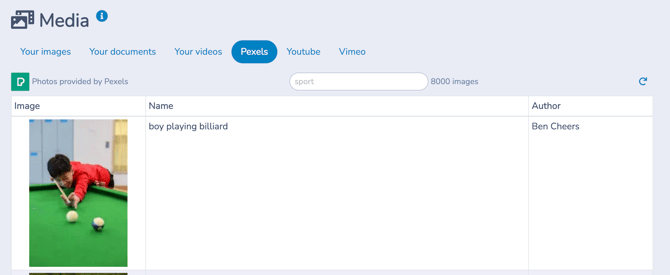
Use Pexels when you need a fast stock image without uploading your own file. Review the image and your Organization’s usage requirements before publishing.
This is ideal for:
-
Banners and header images
-
Generic visuals (backgrounds, people, activities, landscapes)
-
Situations where you need a quick image without custom branding
How Pexels Images Work
The Pexels tab is browse-only.
Images from Pexels are not stored permanently in your Media Library.
Once attached to a message or template, the image behaves like any other image in that context.
Using a Pexels Image in a Message
To add a Pexels image to a message:
-
Open the New Message interface
-
Click Attachment
-
Select Attach an image
-
Click the Media button
-
Click the Pexels tab
-
Search for an image
-
Click the image row to attach it to your message
Once attached, the image behaves like any other image in that message.
Using a Pexels Image in a Template
To use a Pexels image in a template:
-
Add an Image block
-
Click the Media button
-
Select the Pexels tab
-
Search for an image and select it
🧩 On-Demand Visuals
Use Pexels when you need a fast, copyright-safe image without managing uploads or maintaining it in your Media Library.
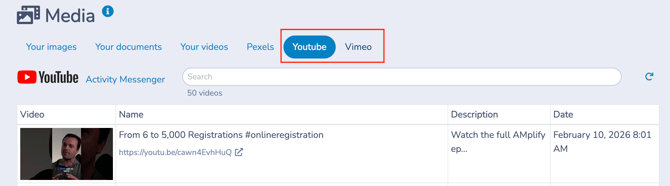
5. YouTube and Vimeo
Activity Messenger integrates with YouTube and Vimeo, allowing you to use hosted videos without reuploading them to the platform.
🧭 Platform Fit Reminder
Use YouTube or Vimeo when video quality, length, or playback reliability matters.
Use Activity Messenger uploads for short, lightweight clips meant to support a message—not carry it.
Connecting Your Accounts
To enable these integrations:
-
Go to
 Organization settings > Socials & marketing
 -
Add your YouTube and/or Vimeo account URL
Once connected, your videos automatically appear in the corresponding YouTube or Vimeo tabs in the Media section.
Using YouTube and Vimeo Videos
Videos from YouTube and Vimeo behave like native video assets when used in messages.
From the video list, you can:
-
Copy the YouTube or Vimeo link
-
Send the video directly
-
This opens the New Message interface with the video pre-attached
-
-
Open the video on YouTube or Vimeo in a new tab
When sent:
-
Emails display a clickable video preview
-
SMS messages include a link to the hosted video
🧩 External Media, Same Rules
Externally hosted videos follow the same attachment and reuse rules as uploaded media.
Once attached to a message, they behave just like any other video asset—without duplication or reuploading.
Related guides
-
Communications 104: Message Assets
-
Communications 103: Creating and Sending Messages
-
Templates: Creating and Using Reusable Email Layouts
-
Quick Messages: Creating and Using Text-First Operational Messages
-
Creating and Sending Personalized Certificates
-
Microsite Configuration & IFRAME Integration
-
Connected Apps