

The Communications feature of Activity Messenger is one of the platform’s core pillars. Because administrators spend a significant portion of their time communicating with clients, participants, parents, members, and staff, messaging in Activity Messenger is designed to be first-class, centralized, and operationally safe.
Unlike basic email tools or fragmented workflows that rely on Outlook inboxes and personal smartphones, Activity Messenger provides a unified system for sending email and SMS—manually or automatically—directly from the context where your data lives. Every message is logged, auditable, and tied to client accounts, registrations, invoices, and memberships, allowing teams to collaborate confidently and communicate consistently.
From simple reminders to fully branded newsletters and automated notifications, communications in Activity Messenger are built to be responsive, trackable, compliant, and deeply integrated with the rest of the platform.
This article focuses on the foundational concepts you need to understand before sending messages. You’ll learn:
-
What the communications system can do
-
How email and SMS messaging work at a high level
-
How client accounts, recipients, and subscriptions impact messaging
-
How unsubscribes and compliance are handled
Understanding these fundamentals ensures that when you start sending messages, your communications are clear, compliant, collaborative, and aligned with real operational workflows.
➡️ Next step: Communications 102 covers list creation and audience segmentation, the engine that powers precise and relevant messaging in Activity Messenger.
Covered in this guide
Use this section to quickly find the communication concept or unsubscribe setting you need.
Part 1: Foundational Concepts in Communications
🧭 Orientation: What “Communications” Means in Activity Messenger
Before sending a message, it’s important to understand what the Communications feature represents in the system.
Communications is not a personal inbox or a standalone email tool. It is a centralized messaging system designed to operate safely at scale, directly alongside your organization’s data.
Every message sent through Activity Messenger is:
-
Logged and auditable
-
Shared across your team
-
Tied to real system records such as clients, registrations, invoices, and memberships
This design ensures consistent communication, operational clarity, and built-in compliance.
1. What You Can Do with Communications
At a high level, the Communications feature allows you to:
- Send email and SMS messages to individuals or groups
- Create responsive newsletters using a drag-and-drop editor
- Design reusable email and SMS templates
- Personalize messages using merge fields
- Automate messages based on events, schedules, or triggers
- Track delivery, opens, and clicks
- Manage subscriptions and unsubscribes
- Send certificates by email or SMS
All communications are logged, auditable, and connected to client accounts.
🧭 Communication Channels Are a Core Decision
Every message in Activity Messenger is delivered through one or both communication channels. Choosing the right channel affects delivery, cost, formatting, and reliability.
2. Communication Channels: Email & SMS
Activity Messenger supports two primary communication channels. You can send messages via email only, SMS only, or both, depending on your configuration and use case. Understanding the differences between the two is critical.
Best suited for:
- Longer messages and detailed content
- Newsletters and announcements
- Confirmations, receipts, reminders, and updates
Email supports:
- Rich formatting
- Images and buttons
- Multi-column layouts
SMS (Text Message)
Best suited for:
- Short, time-sensitive messages
- Reminders, alerts, cancellations
- High-visibility communications
SMS messages are fast, direct, and highly effective—but should be used intentionally.
How Activity Messenger structures an SMS Message
When you write an SMS message, Activity Messenger adds required text around your message before it is sent.
The final SMS follows this structure:
[Organization Alias]: [Configured message] Reply STOP to opt-out.
Activity Messenger reserves at least 25 characters for the required opt-out text. In French, this requires at least 38 characters. Your Organization Alias is also added at the beginning of the SMS, so the total number of available characters depends on the length of your Alias and the language of the opt-out text.
Because SMS messages are billed by segment, a longer Alias, longer message, French opt-out text, special characters, accents, or emojis may cause the SMS to use more than one segment.
⚠️ Use the SMS preview before sending to confirm the final message length and segment count.
➡️ A full walkthrough of sending messages is covered in Communications 103: Creating & Sending Messages
3. 🧭 How SMS and MMS Behave
Text messaging behaves very differently from email. Understanding these mechanics before sending messages at scale helps avoid unexpected behavior or costs.
⚠️ If this is your first time sending text messages through Activity Messenger, we strongly recommend reading this entire section carefully to avoid unexpected behavior or costs.
Short Message Service (SMS)
- Plain text messages
- Character limits:
- 160 characters (Latin alphabets)
- 70 characters when using emojis or non-Latin characters
- Longer messages are automatically split into multiple segments
- Each segment counts against your SMS balance
💡 Important: Sending long SMS messages may reduce your balance by more than one SMS.
By default, SMS messages are sent from a number provided by Activity Messenger with a 438 area code. You may request a different area code (subject to availability) by contacting support@activitymessenger.com.
Multimedia Message Service (MMS)
MMS allows you to send:
- Images
- Videos
- GIFs
- Audio files
Key notes:
- Requires a data plan on the recipient’s device
- Recommended media size: ≤ 500 KB for reliable delivery
When you attach media, Activity Messenger automatically sends an MMS instead of an SMS—no configuration required.
When linking to YouTube or Vimeo, Activity Messenger includes a lightweight thumbnail image to ensure carrier delivery.
🧭 Images and Emojis Affect Deliverability
Images and emojis influence not just engagement, but also delivery reliability.
Should You Attach Images or Emojis?
Images and emojis can increase engagement—but they should be used intentionally.
When images can be helpful
For non-critical communications such as promotions or general announcements, attaching images can be beneficial because:
-
Visual messages tend to attract more attention and increase engagement
-
Recipients without mobile data plans will still receive the email version
-
Participants can choose their preferred notification method over time
⚠️ Important: For critical messages, avoid images and emojis
For must-receive communications—such as reminders, cancellations, safety notices, or urgent operational updates—we strongly recommend using plain-text messages only.
Including images or emojis can:
-
Convert an SMS into an MMS
-
Require a mobile data plan on the recipient’s device
-
Increase the risk of non-delivery due to carrier or device limitations
- Increase the cost of each individual MMS message
Even though Activity Messenger works to ensure reliable delivery, 100% delivery cannot be guaranteed when media or emojis are included, as delivery ultimately depends on carriers and recipient data plans.
📌 Best practice:
For critical operational messages, use plain text only, no images, no emojis, and keep messages concise to maximize delivery reliability.
Twilio (SMS Provider)
Activity Messenger uses Twilio to send and receive SMS and MMS messages across North America.
Twilio:
- Interfaces directly with mobile carriers
- Provides reliable delivery and routing
- Powers both inbound and outbound messaging
SMS & MMS Pricing
Sending SMS and MMS is not free:
-
Activity Messenger pays Twilio for every message delivered.
-
MMS costs more than SMS at the carrier level.
However, Activity Messenger charges the same rate for SMS and MMS, so you never need to choose between clarity and cost.
That said, certain content can increase how many SMS segments are required (and therefore how much your send consumes):
-
Emojis or non-Latin characters reduce the character limit per segment
-
Long messages are split into multiple segments automatically
✅ Tip: The message creation dashboard shows estimated send cost before you send. Always review it carefully.
🧭 Who You’re Messaging vs Who Exists in the System
Before building lists or sending messages, you need to understand how people are represented in Activity Messenger.
4. Understanding the Difference Between Clients, Participants, and Recipients
These concepts are closely related but serve different purposes.
Participants
A Participant is a person enrolled in an activity (class, camp, or event).
-
Represents attendance
-
May be an adult or a child
-
Does not automatically become a message recipient
-
Becomes a recipient only if contact information exists
A single registration may create multiple participants under one client account.
Recipients
A Recipient is any person with a valid email address and/or mobile number who can receive communications.
Recipients:
-
May or may not be clients
-
Do not have client portal access
-
Can receive messages based on consent and subscription status
Created through:
-
People blocks in forms
-
Secondary contacts in registrations
-
Imports (Excel / CSV)
-
Integrations
Clients
A Client is the account owner.
Clients:
-
Are created only when someone submits a form, registers, or completes a purchase
-
Have access to the My Account portal
-
Act as Activity Messenger’s built-in CRM record
👉 Only the account owner becomes a client.
➡️ See Client Accounts: Understanding Activity Messenger’s Built-In CRM for details.
🧩 Pattern: Separation of Attendance, Contactability, and Ownership
-
Participants = attendance
-
Recipients = contactability
-
Clients = account ownership
This separation allows Activity Messenger to:
-
Communicate with parents and contacts without forcing accounts
-
Maintain a clean CRM
-
Support flexible messaging and automation
-
Respect consent and compliance rules
This pattern is reused across forms, registrations, invoices, and communications.
Part 2: How Activity Messenger Manages Unsubscribes
Activity Messenger automatically manages email and SMS unsubscribes—while recognizing that not all communications are the same.
🧭 Not All Messages Are Equal
Some messages are optional. Others are required for service delivery.
To support this flexibility, Activity Messenger distinguishes between operational and marketing communications.
1. Key Concept: Two Types of Communication
1. Marketing Communications
Used for:
-
Promotions
-
Newsletters
-
Program announcements
If a contact unsubscribes, all marketing messages are blocked automatically.
2. Non-Marketing (Operational) Communications
Used for:
-
Reminders
-
Cancellations
-
Receipts and invoices
-
Required confirmations
✅ Recipients continue receiving these even if they unsubscribe from marketing.
📌 Best practice:
Always mark operational messages as Non-marketing.
📘 Note on terminology
In the messaging industry, operational emails are often referred to as transactional emails.
Because Activity Messenger supports a wide range of workflows beyond simple transactions, we intentionally use different terminology:
-
Operational — the concept we use in documentation to describe service-related, must-receive communications
-
Non-marketing — the term used within the platform UI to clearly distinguish these messages from promotional content
This approach makes message classification more intuitive for users while remaining aligned with industry standards and compliance requirements.
2. Viewing Unsubscribed and Flagged Recipients
Activity Messenger automatically tracks and manages unsubscribe and delivery issues for both email and SMS communications. This ensures compliance with messaging regulations and protects your organization’s sender reputation.
To view and manage unsubscribes:
-
Go to Lists > Unsubscribes
-
You will see a list of all flagged recipients, including the reason they were flagged
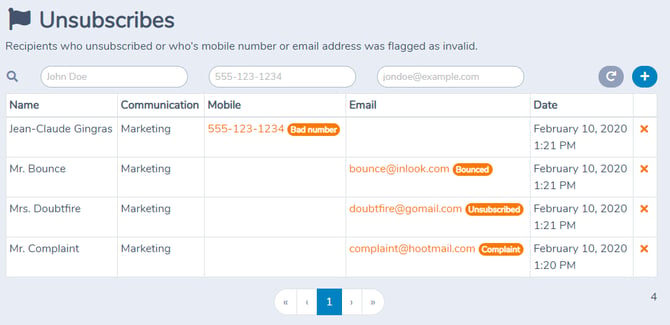
From this screen, you can:
-
Review unsubscribe reasons
-
Identify data issues (for example, incorrect emails or phone numbers)
-
Correct source data in external systems such as Amilia or Excel/CSV files
-
Remove recipients from the bounced list once corrections have been made and consent has been restored
Recipient information may be flagged for one of the following reasons:
-
Unsubscribed – The recipient explicitly opted out of marketing communications
-
Complaint – The recipient reported a message as spam
-
Bounced – The email address is invalid or no longer exists
-
Bad number – The mobile number is invalid or unreachable
Activity Messenger handles these cases automatically and prevents further marketing messages from being sent to affected recipients.
The Communication column indicates which types of messages the contact is unsubscribed from:
-
Marketing emails – The contact opted out of promotional communications
-
Non-marketing: Reminders, follow-ups, and cancellations – The contact is unsubscribed from all communication types
Important Notes on Non-Marketing (Operational) Unsubscribes
Non-marketing (operational) unsubscribe behavior follows stricter rules to ensure that essential service communications can still be delivered when required.
Key points to understand:
-
Recipients cannot unsubscribe themselves from non-marketing (operational) messages.
These messages are required for service delivery. -
Administrators can manually unsubscribe a recipient from non-marketing communications if a client explicitly requests it. This action is performed directly from Lists > Unsubscribes (see Adding Unsubscribes Manually in the next section of this article).
-
Automatic re-subscription occurs when a client re-engages.
If a contact who was unsubscribed from non-marketing messages later fills out a form, registers for a class, or makes a purchase, they are automatically opted back into non-marketing communications.
This behavior ensures that clients always receive critical messages such as confirmations, reminders, cancellations, and invoices, while still honoring unsubscribe requests at the time they are made.
3. Adding Unsubscribes Manually
If someone contacts you directly and asks to be removed from your mailing lists, you can manually add them to the Unsubscribes list.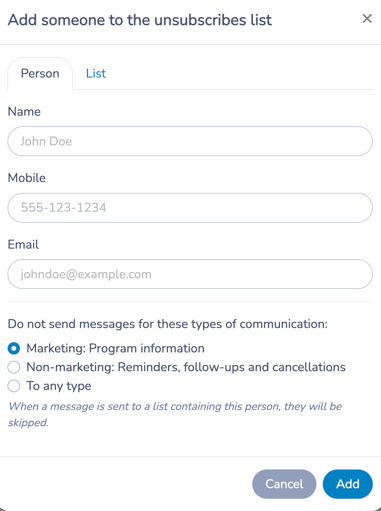
To add an unsubscribe manually:
-
Go to Lists > Unsubscribes
-
Click the (+) button
-
Enter the recipient’s:
-
Name (optional)
-
Email address and/or mobile number
-
-
Select which type of communication to unsubscribe them from:
-
Marketing (program information and promotions)
-
Non-marketing (operational): reminders, follow-ups, and cancellations
-
Any type (both marketing and non-marketing)
-
-
Click Add to confirm
Once added:
-
The recipient will be skipped automatically when messages of the selected type are sent.
-
Manually added unsubscribes are tagged with (admin), indicating they were unsubscribed by an administrator rather than through an automated unsubscribe link.
4. Importing Unsubscribed Contacts from Another System
If you are migrating from another email platform—such as Mailchimp, Amilia, or Constant Contact—you can import your existing unsubscribed contacts into Activity Messenger to ensure compliance from day one.
Activity Messenger supports bulk importing unsubscribes, allowing you to preserve consent preferences and avoid accidentally contacting people who have already opted out.
📘 Prerequisite
Both methods described below rely on importing contacts from an Excel or CSV file.
For step-by-step instructions, refer to Communications 102: Building and Managing Segmented Contact Lists.
Method 1 (Recommended): Using a Subscription Column
This is the easiest and cleanest approach.
When importing a new contact list from an Excel or CSV file:
-
Include a subscription status column in your file
-
Create a new list from an upload (Excel or CSV)
-
During the import process, Activity Messenger will prompt you to identify:
-
Which column contains the subscription status
-
Which value represents an unsubscribed contact
-
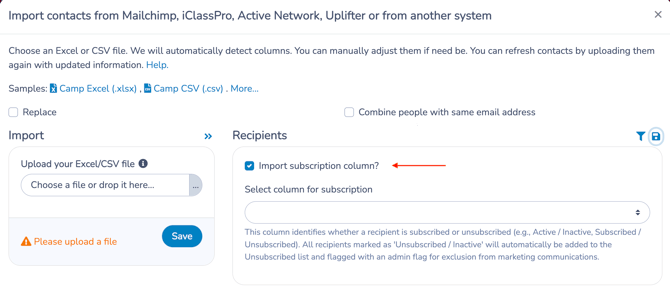
Activity Messenger will then:
-
Import all contacts
-
Automatically mark unsubscribed recipients
-
Prevent marketing messages from being sent to them
This method allows you to import both subscribed and unsubscribed contacts in a single step.
Method 2: Importing a Dedicated Unsubscribes List
Use this method if you already have a list containing only unsubscribed contacts.
To import unsubscribes directly: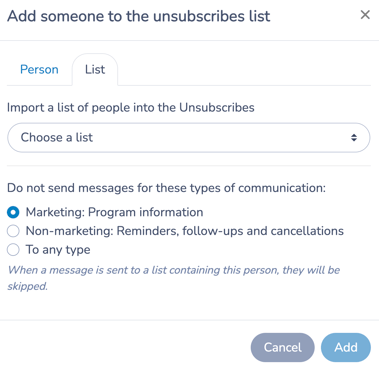
-
Prepare an Excel or CSV file containing the email addresses and/or mobile numbers of unsubscribed contacts
-
Upload this file as a list (see Communications 102 for upload instructions)
-
Go to Lists > Unsubscribes
-
Click the (+) button
-
Open the List tab
-
Select the list you previously uploaded and confirm
Once imported:
-
All listed contacts are added to the Unsubscribes list
-
Activity Messenger automatically blocks marketing emails and SMS to those recipients
After Import
-
Imported unsubscribes behave exactly like contacts who unsubscribed directly through Activity Messenger
-
You can view, filter, and manage them from Lists > Unsubscribes
-
These contacts remain protected from marketing communications unless explicitly re-subscribed with consent
Importing unsubscribes early ensures a smooth migration, protects your organization legally, and maintains trust with your audience.
Best Practices
-
Always respect unsubscribe requests
- Always verify that you are sending the correct type of message, either Marketing or Non-marketing (operational)
-
Keep your source systems (CRM, registration platforms, spreadsheets) up to date
-
Import unsubscribes when migrating from another platform
-
Regularly review the Unsubscribes list to maintain clean data and strong deliverability
Managing unsubscribes properly ensures legal compliance, protects your sender reputation, and builds trust with your audience.
5. How Recipients Unsubscribe
Every marketing email and SMS landing page sent through Activity Messenger includes an Unsubscribe link.
When a recipient clicks this link, they are taken to a confirmation page displaying the message:
“Please confirm your intention to unsubscribe from receiving marketing emails and text messages from [Organization name].”
The recipient must then click I Confirm to complete the unsubscribe request.
Once confirmed:
-
The recipient is immediately removed from marketing communications
-
Any contact list to which you send a marketing email will ignore that contact
-
Their unsubscribe status is recorded and enforced automatically across the platform
📌 Recipients cannot unsubscribe themselves from non-marketing operational messages using the standard unsubscribe link. These messages are intended for service-related communications such as confirmations, reminders, cancellations, invoices, and security notices.
Help for Recipients
If you are a client, participant, or parent of a participant of an organization currently using Activity Messenger to send emails or SMS (text) messages and need help managing or accessing your messages, please refer to:
➡️ Managing Messages Received from Activity Messenger
Related guides
-
Introduction to Communications
-
Communications 102: Lists, Recipients, and Audiences Segmentation
-
Communications 103: Creating and Sending Messages
-
Communications 104: Templates and Quick Messages
-
Communications 105: Automating Email and SMS Messages
-
Messaging Defaults
-
Sending Emails from Your Own Domain
-
Personal Information and Electronic Message Laws in Canada and the USA