

Send an email or SMS before or after each scheduled occurrence — not just the first or last class of a session.
The Class Reminder automation is date-based and runs once per occurrence, per participant. It allows you to automate recurring reminders, link delivery, follow-ups, and operational communication tied directly to your activity schedule.
Because it runs per occurrence, it helps reduce no-shows, standardize weekly communication, and eliminate repetitive manual messaging.
📌 At a Glance
Definition
The Class Reminder automation sends email or SMS messages before or after each scheduled class occurrence for registered participants.
Use it when
-
Running weekly programs
-
Sending Zoom links before each class
-
Sending reminders to reduce no-shows
-
Sending follow-up resources after each session
Inputs
-
Activity schedule
-
Participant registrations
-
Automation timing configuration
Outputs
-
One message per occurrence per participant
Key rule
A participant receives a message for every occurrence they are scheduled to attend.
Covered in this guide
Use this section to quickly find the Class Reminder setting or workflow you need.
1. When to Use the Class Reminder Automation
-
Weekly programs
-
Online classes (Zoom or Teams links)
-
Drop-in sessions
-
Programs where reminders reduce no-shows
2. 🧭 How This Automation Works
This automation is triggered by each scheduled class occurrence.
For every occurrence in a class schedule, the system:
-
Identifies participants registered for that specific occurrence
-
Calculates timing based on your configuration
-
Sends the message only to those scheduled for that date
You are defining a recurring rule tied to each occurrence. A participant registered for a 10-week session may receive up to 10 reminders, one per scheduled occurrence.
Timing is calculated per occurrence and per participant.
Reminder for a single Class/Event
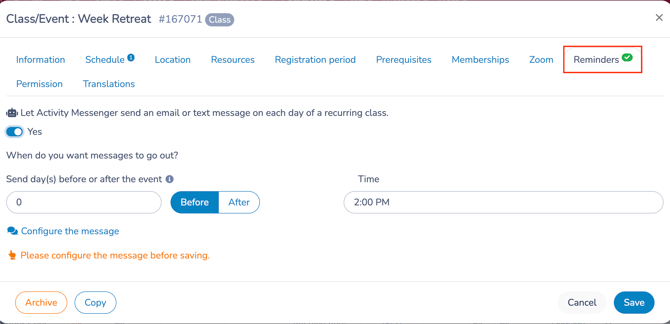
If the reminder applies only to one specific Class/Event, you can create it directly from the Class/Event Creation panel under the Reminders tab.
Use this method when the message should apply to one activity only.
Use Communications > Automation > + Create when you want one automation rule to apply across multiple activities, Lists, Forms, or selected Classes/Events.
3. Step-by-Step Guide
Step 1: Create the Automation
-
Go to Communications > Automation > + Create
-
Enter a clear Name
-
(Optional) Add an internal description
-
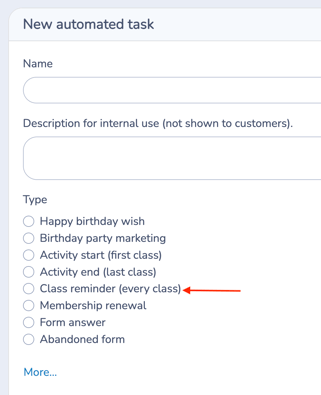
Select Class Reminder (Every Occurrence) as the trigger
-
Toggle Send automatically: Yes
Step 2: Set Timing
Define how many days before or after each class occurrence the message should send.
-
Use 0 to send on the same day as every class.
Examples:
-
Send 1 day before at 6 PM
-
Send same day at 2 PM
-
Send 1 day after (follow-up message)
Timing is applied to every occurrence in the schedule.
Step 3: Define Your Recipients
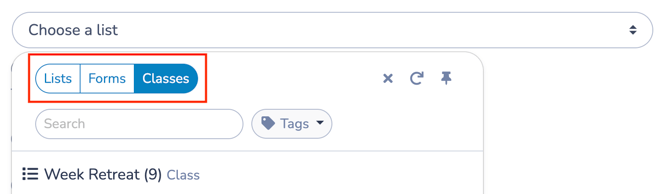
Choose where recipients come from:
Option A: Lists (Recommended)
Use a dynamic list that updates automatically as participants register.
Best when:
-
You want one automation to apply across multiple activities
-
You group classes by category or tags
-
You want flexible, reusable logic
This is the recommended approach for most workflows.
Option B: Forms
Use a Form source when the automation should apply only to registrations coming from a specific Form.
Best when:
-
A program has its own dedicated registration form
-
You want to isolate communication to one intake workflow
Option C: Individual class/events
Use individual Classes/Events when the automation should apply to one or more specific activities.
Best when:
-
Communication is unique to a single activity
-
You do not need dynamic grouping
Important Notes
-
Tags are contextual.
-
When selecting classes, you will see class tags.
-
When selecting forms, you will see form tags.
-
When selecting lists, you will see list tags.
-
-
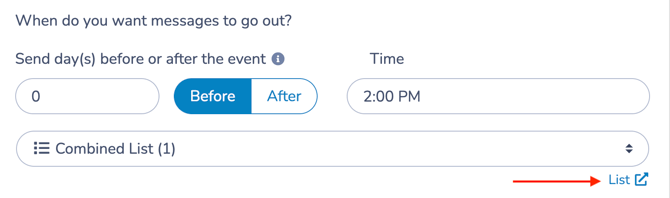
After selecting an audience, a link appears allowing you to open:
-
The selected List
-
The selected Form
-
The selected Class attendance list
-
This allows you to verify exactly who qualifies for the automation.
Step 4: Configure Advanced Options (Optional)
Advanced Options further restrict who receives the message.
Available Options
-
Use participant contact information
Sends the message to the participant instead of the account owner (if available).
-
Ensure participant was present (checked-in)
Sends only to participants marked as present.
⚠️ Use this option only for post-class follow-ups.
It should not be used when attendance data does not yet exist.
-
Use a filled form filter
Use this option when the automation should depend on whether participants have or have not completed a specific Form.
After selecting the Form, choose one of the following options:
- Send to participants who have filled out the Form
- Send to participants who have not filled out the Form
You can also choose whether the Form must have been filled out on the same day the message is sent.
This is useful for workflows such as:
- sending instructions only to participants who completed a required Form
- reminding participants who have not completed a waiver
- following up with participants who submitted a feedback Form
- targeting participants based on whether a required document or response has been received
Example:
If a waiver must be completed before class, you can select the waiver Form and choose Send to participants who have not filled out the Form. Activity Messenger will then send the reminder only to participants who still need to complete it.
Step 5: Configure Your Message
-
Click Configure message
-
Choose one:
-
Write a new message
-
Select a Template
-
Select a Quick Message
-
-
Add attachments if needed (e.g., waiver or survey form)
You can include:
-
Zoom or Teams links
-
Location details
-
Assignments
-
Follow-up resources
Step 6: Save Your Changes
Click Save to activate the automation.
Once saved and set to Send automatically: Yes, the automation will begin sending messages according to your configured timing and filters.
Automation Simulation
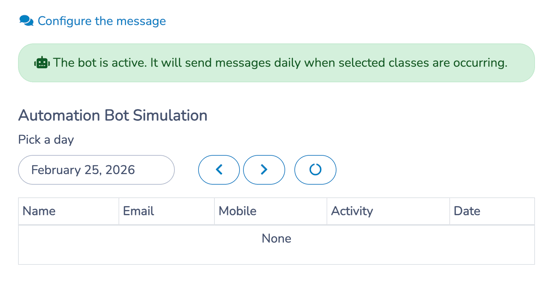
At the bottom of the automation configuration page, you will see the Simulation panel.
The Simulation automatically displays scheduled messages based on your current settings.
It allows you to verify:
-
Which participants have a class on a selected date
-
Which occurrences are detected
-
When messages are scheduled to send
The Simulation does not send messages.
It reflects what the automation has already scheduled.
⚠️ Note: This Automation is driven by Class Attendance Data
After you save this automation, you will see a notice indicating that it is controlled by Class Attendance.
This means:
-
Send-outs are scheduled using the dates and participants in the Attendance List for the selected class or event.
-
If the class schedule or participant registrations change in the Attendance List, the automation’s scheduled messages will update accordingly.
This automation is affected by:
-
Changes to event dates or schedule
-
Participant cancellations
- Class switching
-
New registrations
-
Attendance status updates
If you need to adjust how or when messages are sent for a specific class, review the corresponding Attendance List.
💡 Best practice:
After saving your automation, review the Simulation panel and check upcoming dates to confirm everything is working as expected.
4. 🧩 Key Configuration Notes
-
The automation runs for each scheduled occurrence.
- Automatically excludes participants not scheduled for that occurrence.
-
Supports placeholders for:
- {Participant first name}
- {Activity}
- {Start date}
- {Start time}
- {Group}
5. Why It Matters
-
Reduces no-shows
-
Standardizes recurring reminders
-
Automates weekly communication without manual effort
6. Common Workflows
Below are typical operational uses for the Class Reminder (Every Occurrence) automation.
1️⃣ Weekly Program Reminder
Goal: Reduce recurring no-shows.
Configuration:
-
Class Reminder automation
-
Send 1 day before each class at 6 PM
-
Include date, time, and location
Outcome:
Participants consistently receive reminders before every session.
2️⃣ Online Class Link Delivery
Goal: Automatically send Zoom or Teams links before each session.
Configuration:
-
Class Reminder automation
-
Send 2 hours before each occurrence
-
Include meeting link and instructions
Outcome:
Participants receive access details without manual sending.
3️⃣ Drop-In Session Reminder
Goal: Remind only those registered for that specific occurrence.
Configuration:
-
Class Reminder automation
-
Use Lists or Individual Class selection
-
Send same-day reminder
Outcome:
Only participants scheduled for that occurrence receive the message.
4️⃣ Post-Class Follow-Up
Goal: Send assignments or recap information after every session.
Configuration:
-
Class Reminder automation
-
Send 1 day after each occurrence
-
Attach resources or homework
Optional: Enable “Ensure participant was present (checked-in)” to limit follow-ups to attendees.
Outcome:
Consistent post-class communication without manual effort.
5️⃣ Waiver Enforcement Workflow
Goal: Remind participants to complete a required waiver before class.
Configuration:
- Use a Class Reminder automation.
- Enable Use a filled form filter.
- Select the required waiver Form.
- Choose Send to participants who have not filled out the Form.
- Schedule the message before the class occurrence.
Result: Participants who have not completed the selected waiver Form receive a reminder before class.
7. 🧭 Workflow Design Tip
Use Class Reminder when communication must happen repeatedly.
If the message only needs to send once per session:
-
Use Activity Start (first class)
-
Use Activity End (final class)
Think in terms of frequency:
-
Once per session → Activity Start / End
-
Every occurrence → Class Reminder
Related guides
-
Communications 105: Automating Email and SMS Messages
-
Activity Start Automation
-
Activity End Automation
-
Communications 103: Creating and Sending Messages
-
Communications 102: Building and Managing Lists
-
Quick Messages: Creating and Using Text-First Operational Messages
-
Templates: Creating and Using Reusable Email Layouts
-
Personal Information and Electronic Message Laws in Canada and the USA