

Activity Messenger lets you build recipient lists directly from class and event registrations, turning real participation data into automatically updating audiences.
This list type is one of the most powerful because it automatically stays in sync as participants register, cancel, or move between activities. It is ideal for reminders, operational communications, follow-ups, and highly targeted messaging tied directly to participation.
This guide explains how to create a list from class or event registrations, how filtering works, and how to control recipient grouping to avoid duplicate sends.
Covered in this guide
Use this section to quickly find the Class/Event Participant List setting or workflow you need.
1. When to use Class/Event participant Lists
Use this list type when your messaging needs to be tied directly to class or event participation.
This is ideal when you want to:
-
Message participants registered for specific classes or events
-
Automatically include new registrants without manually updating lists
-
Send reminders, cancellations, or follow-ups related to attendance
-
Combine participants from multiple classes into a single, targeted audience
(for example: all Spring 2026 classes, or all Ballet programs) -
Segment participants by activity, date, age, or other participation-based criteria
-
Power automations that depend on live registration data
For child-based programs, the recipient is typically the account owner (parent or legal guardian) who completed the registration.
Because these lists are connected directly to registrations, they stay accurate as participants register, cancel, or move between activities.
Well-targeted lists lead to:
-
More effective automations
-
Clearer operational communication
-
Higher engagement and response rates
-
Fewer unsubscribe requests
-
More professional and compliant messaging
Class-based lists provide built-in context—who is attending, what they’re attending, and why they’re receiving the message—which is far more powerful than generic contact lists.
2. Creating a Class/Event Participant List
To create a list from registrations: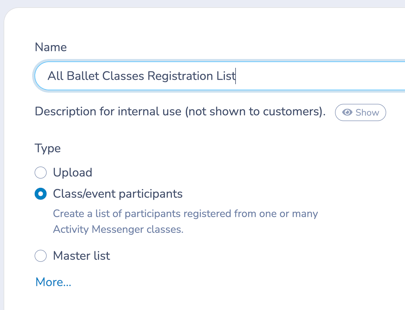
-
Go to Lists
-
Click + Create
-
Enter a List name
-
Optionally, click Show to add an internal list description
-
Select Class/Event Participants
-
Click Create
The Class/event participant list type configuration panel will open up.
3. Configuration Panel overview - Class/Event Participant List Type
Once you create an Class/event list, you are taken to the list’s management screen. This panel is used to build and manage dynamically updating lists based on class and event registrations.
Each numbered element below corresponds to a control or area in the interface.
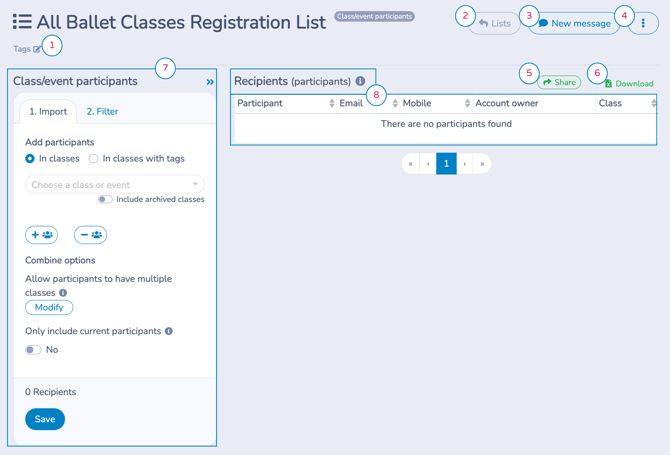
Interface Legend
Click any title below to jump to its description.
|
1. List Tags |
5. Share |
| 6. Download to Excel | |
|
3. New Message |
|
| 8. Recipients (participants) Table |
1. List Tags
Allows you to assign tags to this list.
Tags help organize lists by season, program, or purpose and make them easier to find later from the Lists screen. List tags are covered in Communications 102.
2. Back to Lists
Returns you to the main Lists overview screen.
3. New Message
Opens the message creation workflow with this list preselected as the audience.
This is the fastest way to send an email or SMS to all (or part of) this list.
4. List Actions Menu ( ⋮ )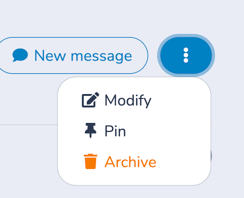
Opens additional list-level actions such as:
-
Modify (list name and description)
-
Pin
-
Archive
5. Share
Allows you to share this list and its recipients with another organization in your network.
This is commonly used in federation-level workflows, where contacts need to be shared across multiple organizations within the same federation, while maintaining centralized control of the list.
The receiving organization can view and message recipients, but cannot modify the list or its contents.
6. Download to Excel
Exports the current list of recipients to an Excel file.
Useful for:
-
Audits and reporting
-
Offline review
-
Sharing data externally
The export reflects the list as currently configured.
7. Class/Event Participants Panel (Import & Filter)
This is the control panel where you define who belongs in the list.
It contains two tabs:
-
1. Import – Select which classes or events populate the list
-
Choose individual classes or classes by tag
-
Include or exclude archived classes
-
Add (+) or exclude (–) participant segments
-
Configure combine options and current-participant rules
- Enable or disable Only include current participants
-
-
2. Filter – Refine participants further
-
Age (children, adults, range)
-
Birthday month
-
Gender
-
Recipient type (account owner vs participant)
-
All filters stack on top of the import rules and update dynamically over time.
➡️ A complete, step-by-step walkthrough of this panel is provided below in Building Your Class/Event Participant List.
8. Recipients (Participants) Preview Table
Displays a live preview of the participants included in the list.
Columns typically include:
-
Participant name
-
Email
-
Mobile
-
Account owner
-
Class
This table updates automatically as:
-
Registrations change
-
Filters are adjusted
-
Participants move between classes
Pagination controls appear below when the list contains many recipients.
4. Building Your Class/Event Participant List
Class/Event Participant lists are built in two steps:
-
Select which classes or events to pull participants from
-
Refine the audience using participant-level filters (optional)
This list type stays dynamically updated as registrations change.
How Filters Work Together
Filters are cumulative. A participant must match all selected conditions to be included in the list.
Step 1: Import — Select Classes or Events
Use the 1. Import tab to define which classes or events populate the list.
Choose How to Select Classes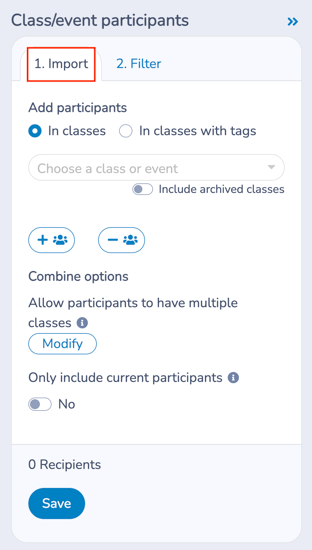
You have two ways to select classes:
A. In classes
Manually select one or more individual classes or events from the dropdown.
B. In classes with tags
Automatically include all classes that share a specific class tag.
This is ideal when you want the list to stay up to date as new tagged classes are created (for example, “Winter 2026” or “Ballet”).
C. Include Archived Classes (Optional)
Enable Include archived classes to add participants from classes or events that have been archived in the class/event management area.
By default, archived classes are excluded to keep lists focused on active programs. Turning this option on allows you to target participants from past or completed activities.
When to Use This Option
This option is commonly used for:
-
Re-engagement or retention campaigns
-
Marketing to historical participants or alumni
-
Announcements related to returning programs or new sessions
Including archived classes is especially useful when you want to communicate with people based on past participation, rather than current enrollment.
D. Adding and Excluding Class Segments
Below the class selector, you’ll see + and – icons.
 ➕ Add segment
Adds another class selection rule.
Use this when you want to combine participants from multiple unrelated classes or tag groups into a single list.
 ➖ Exclude segment
Removes participants from a specific class or set of classes.
Use this to fine-tune your audience (for example, “All ballet classes except Intro Ballet”).
All import selections are evaluated together before filters are applied.
E. Combine Options
When building a list from registrations, you must decide how participants are grouped.
Click Modify to make changes to the default setting.
Activity Messenger offers three Combine options, each serving a different use case.
One class per participant (Default)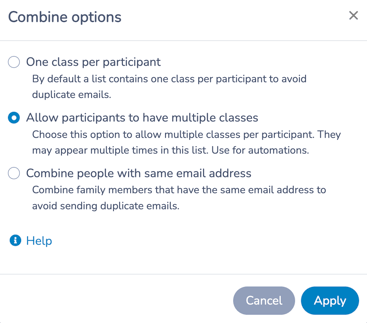
-
Use this option when each participant should receive the message only once, even if they are registered in more than one selected activity.
When this option is selected, Activity Messenger keeps one activity association per participant for the send. This prevents the same participant from receiving duplicate messages because they appear in multiple selected Classes/Events.
Allow participants to have multiple classes
-
A participant appears once per activity
-
The same person may appear multiple times
-
Useful for automations or per-activity processing
Combine People with the same email address
-
Groups participants by email address
-
Typically used to group families
-
Ensures one message per household
-
This option is especially useful for marketing campaigns, where sending multiple messages to the same parent would be undesirable.
Example Scenario
Arthur Weasley has two children:
-
Ron is enrolled in Virtual Quidditch and Potions
-
Ginny is enrolled in Potions
- Ron and Ginny are child participants (no valid email)
| Combine Option | Result |
|---|---|
| One class per participant | Ron (Quidditch), Ginny (Potions) Arthur receives 2 messages. |
| Multiple classes | Ron (Quidditch), Ron (Potions), Ginny (Potions) Arthur receives 3 messages. |
| Combine by email | Arthur (Ron, Ginny) Arthur receives 1 message. |
Choosing the right combine option ensures messages are delivered accurately and respectfully, without duplication.
F. Only include current participants
The Only include current participants option limits the list to participants who are actively attending today or in upcoming classes or events.
When enabled, this filter is dynamic and is evaluated at the moment an email or SMS is sent, not when the list is created or saved.
How It Works
-
Participants are included only if they have at least one class or event that is currently in progress or scheduled in the future
-
Participants whose registrations are fully in the past are automatically excluded
-
The list updates automatically over time as attendance and schedules change
Because this filter is applied at send time, the same list can include different recipients on different days without any manual updates.
When to Use This Option
Use Only include current participants when sending messages that should apply only to active attendees, such as:
-
Class reminders or day-of notifications
-
Schedule changes or cancellations
-
Operational updates for ongoing programs
-
Last-minute announcements affecting today’s or upcoming sessions
When Not to Use It
Do not enable this option if you want to:
-
Message past participants (for surveys or re-engagement campaigns)
-
Promote future programs to alumni or previous attendees
-
Send general marketing communications to historical registrants
💡 Best practice: Pair this option with operational or non-marketing messages to ensure only currently active participants receive time-sensitive communications.
Step 2 (optional): Filter — Refine the Audience
Once classes or events are selected, use the 2. Filter tab to refine who within those classes is included.
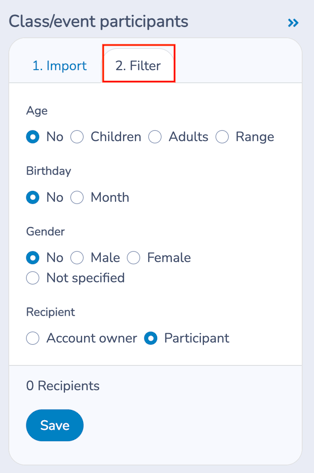
Filters stack on top of the Import selections.
Available Filters
Age
-
Children
-
Adults
-
Custom age range
Birthday
-
Filter by birth month
(commonly used for birthday campaigns)
Gender
-
Male
-
Female
-
Not specified
Recipient
-
Account owner (typically the parent or guardian)
-
Participant (the enrolled individual)
💡 In child-based programs, the account owner is typically the correct recipient for messaging. If a participant does not have a valid email address, Activity Messenger automatically defaults to the associated account owner as the recipient.
Saving the List
At the bottom of the panel, the recipient count updates in real time as selections and filters are applied.
Click Save to finalize the list.
Once saved, the list:
-
Updates automatically as registrations change
-
Can be reused across messages, automations, and campaigns
-
Can be combined with other lists using Master Lists
5. Next Steps
Once your Class/Event Participant list is set up, you can:
-
Send messages directly to the list
-
Use it in automations
-
Combine it with other lists using Master Lists
-
Apply tags for organization
➡️ Continue to Communications 103: Creating and Sending Messages to start messaging your participants.
Related guides
-
Communications 102: Building and Managing Lists
-
Communications 103: Creating and Sending Messages
-
Communications 105: Automating Email and SMS Messages
-
Class Reminder Automation
-
Activity Start and Activity End Automation
-
Form Response Automation
-
Managing Unsubscribes in Activity Messenger