

Automatically send an email or SMS to users who start a payment form but do not complete it.
This action-based automation helps recover incomplete registrations by sending a reminder after a defined delay, encouraging users to return and finish their submission.
Use it to reduce abandoned carts, recover lost revenue, and increase completed enrollments — without manual follow-up.
📌 At a Glance
Definition
Abandoned Form is an action-based automation that sends reminder messages to users who begin filling out a payment form but do not complete the submission.
Use it when
• registrations are started but not completed
• users abandon checkout
• you want to recover incomplete payments automatically
• you want to reduce cart abandonment
Inputs
• selected payment form
• delay timing
• message content (email or SMS)
Outputs
• reminder message sent after abandonment
• recovered registrations or payments
• automated follow-up tracking
Key rules
• works only with payment forms
• requires a captured email address
• message is sent after a minimum delay of 1 day
• completion validation occurs daily before sending
• if the form is completed, reminders are skipped
Related automations
Form Response • Activity Start • Class Reminder
Covered in this guide
Use this section to quickly find the Abandoned Form setting or workflow you need.
1. When to use the Abandoned Form Automation
-
Recover incomplete registrations
-
Remind users to complete payment
-
Reduce abandoned carts
-
Increase completed enrollments
-
Follow up on partially completed applications
⚠️ Important: Abandoned Form Automations only work with payment forms. Non-payment forms are not eligible for abandonment tracking.
A payment form creates a checkout path. Abandonment is detected when the respondent starts the form, provides a valid email address, advances far enough for the system to capture the email, and does not complete the payment or submission.
💡 Best Practice
Apply this automation to every payment or registration form created in Activity Messenger.
It takes only a few minutes to configure, and even a small increase in recovered submissions can have a measurable impact on revenue and enrollment rates.
2. 🧭 Orientation: How Abandoned Form Works
Abandoned Form is an action-based automation triggered by incomplete form submissions.
When a user begins filling out a payment form but does not finish the checkout process, the system records the submission as abandoned once a valid email address has been captured.
After a configured delay, the automation sends a reminder message encouraging the user to return and complete the form.
If the respondent completes the form before the scheduled reminder is sent, the message is automatically skipped.
⚙️ Abandonment Detection Model
Activity Messenger detects form abandonment using the following sequence:
Form Start → Email Captured (Continue button clicked) → Form Not Completed → Abandonment Recorded → Reminder Scheduled
Key conditions
For a submission to be considered abandoned:
-
The respondent must enter a valid email address
-
The respondent must click a Continue button (advancing the form)
-
The form submission is not completed
-
The Abandoned Form automation is active
If these conditions are met, the system records the submission as abandoned and schedules the reminder according to the configured delay.
This detection model ensures that reminders are sent only to respondents who started the form but did not complete the payment or submission.
Best practice: capture the email early
To detect abandonment reliably, collect the respondent’s email address early in the form.
For payment forms, place a page break immediately after a simplified Account Owner block so the respondent’s email can be captured before the payment step.
This helps Activity Messenger identify abandoned submissions earlier and send reminders only when a valid email address is available.
3. Step-by-Step Guide
Step 1: Create the Automation
-
Go to Communications > Automation > + Create
-
Enter a clear Name
-
(Optional) Add an internal description
-
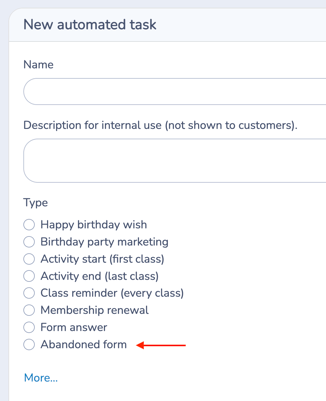
Select Abandoned Form as the trigger
-
Toggle Send automatically: Yes
Step 2: Select the Form
Choose the form you want to monitor for abandonment.
Examples:
-
Day camp registration
-
Product order form
-
Membership application
Only users who start this form but do not complete it will be evaluated.
🧭 When Does a Form Count as Abandoned?
A form is considered abandoned when:
-
The respondent enters a valid email address, and
-
Clicks Continue, but
-
Does not complete the payment
This may occur when the respondent:
-
Moves to the next page (if a page break is configured), or
-
Proceeds to the payment page but does not finish checkout
⚠️ Important
The Abandoned Form automation applies only to payment forms.
Non-payment forms are not eligible for abandonment tracking.
💡 Best Practice: Optimize Your Form Structure
To capture the highest number of legitimate abandonment events:
-
Place a page break immediately after a simplified Account Owner block
-
Capture only essential information (including email) before that break
Why this works:
-
The system can only track abandonment once a valid email has been captured
-
The earlier the email is collected, the more recoverable abandoned submissions you can detect
You can add a Page Break from the Standard Question blocks in the Form Designer.
Step 3: Set Timing
Define how many days after the form is abandoned the message should send.
-
Minimum delay: 1 day
-
You must also define the send time
Timing is calculated from the date the form is marked as abandoned.
Timing Logic and Validation Behavior
Please read this section carefully. It explains how abandoned reminders are validated before sending.
Why is the minimum delay 1 day?
The minimum delay is 1 day to prevent:
-
Sending reminders while someone is still actively completing the form
-
Triggering messages due to short session interruptions
-
Creating unnecessary or premature follow-ups
This ensures reminders are sent only to respondents who genuinely left before completing payment.
How the Completion Validation Works
The Abandoned Form automation is designed to avoid sending reminders to users who later complete their registration.
Each day at 4:00 AM, the system checks whether previously abandoned forms have since been completed.
-
If the form has been completed, the scheduled reminder is automatically skipped.
-
If the form remains incomplete, the reminder stays scheduled for the configured send time.
This daily validation ensures that reminders are only sent to contacts who still qualify as abandoned.
Rare Edge Case
There is a small edge case to be aware of.
If someone completes their registration after the 4:00 AM validation check but before the scheduled send time, they may still receive the reminder.
This scenario is technically possible due to the daily validation timing, but it is extremely rare in practice.
Best Practice
To minimize this edge case, schedule the reminder after the daily validation check has completed. For example, you may choose an early morning send time after 4:00 AM, depending on your Organization’s communication preferences.
🧾 Does Completing the Form Remove “Abandoned” Status?
Yes.
If a user completes the form using the same email address:
-
They are removed from the abandoned state
-
They will no longer qualify for future abandoned reminders for that submission
The automation always validates the current completion status before sending.
Step 4: Configure Your Message
-
Click Configure message
-
Choose one:
-
Write a new message
-
Select a Template
-
Select a Quick Message
-
-
Add attachments if needed
Use placeholders to personalize your message.
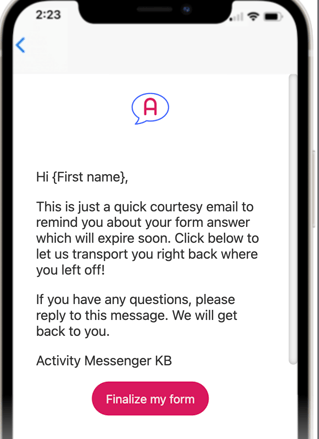
You may include:
-
A direct link back to the form
-
Reminder of saved information
-
Payment instructions
-
Contact details
Default Template
The default message includes:
-
A direct link back to the form, with all previously entered information pre-filled
This allows recipients to quickly resume and complete their submission without starting over.
Step 5: Save and review the Simulation
Click Save to activate the automation.
Once saved and set to Send automatically: Yes, the automation will begin monitoring abandoned submissions.
Automation Simulation
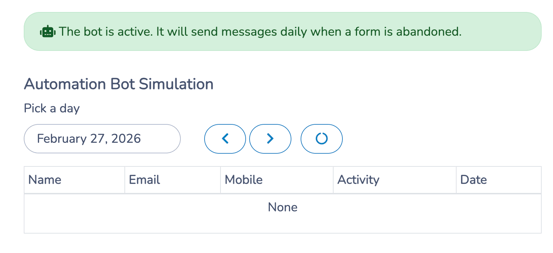
After activation, the Automation Simulation panel appears at the bottom of the configuration page.
Use it to:
-
Select a specific date
-
Preview which recipients will receive a message on that day
-
Validate that timing is configured correctly
The Simulation does not send messages.
It simply previews which messages would be scheduled based on your current settings.
💡 Best practice: After your form goes live, review the Simulation panel and check multiple future dates to confirm the automation is working as expected. If no scheduled messages appear, it may simply mean that no forms have been abandoned yet.
4. 🧩 Key Configuration Notes
-
The automation triggers only if a form is started but not completed.
-
If the user completes the form before the delay period ends, no message is sent.
-
Supports placeholders from the associated form.
-
One message is sent per abandonment event.
-
You can create additional automations for follow-up reminders.
- The automation does not trigger if no valid email was captured before abandonment.
5. Common Workflows
Below are typical operational uses for the Abandoned Form automation.
1️⃣ Registration Recovery
Goal: Recover incomplete registrations.
Configuration:
-
Send 1 day after abandonment
-
Include link back to form
Outcome:
Users return to complete registration.
2️⃣ Multi-Reminder Recovery
Goal: Increase conversion over time.
Configuration:
-
Automation 1 → Send 1 day after abandonment
-
Automation 2 → Send 3 days after abandonment
Outcome:
Structured recovery without manual follow-up.
6. 🧭 Workflow Design Tip
Use Abandoned Form when communication is triggered by an incomplete submission.
If communication is triggered by:
-
A completed submission → Use Form Response
-
A class schedule → Use Class Reminder
-
An expiration date → Use Membership Renewal
Think in terms of what initiates the workflow:
-
Incomplete submission → Abandoned Form
-
Completed submission → Form Response
Related guides
-
Communications 105: Automating Email and SMS Messages
-
Form Response Automation
-
Communications 103: Creating and Sending Messages
-
Communications 104: Message Assets
-
Templates: Creating and Using Reusable Email Layouts
-
Quick Messages: Creating and Using Text-First Operational Messages
-
Payment & Financial Configuration
-
Personal Information and Electronic Message Laws in Canada and the USA